Notes on using pop-ups
You must disable pop-up blockers so that you can open a course window and various course elements in EnTraS. Please select your browser type and follow the instructions for disabling the pop-up blocker.
Please restart your browser after changing the settings so that the changes take effect.
1.1 Internet Explorer – Disabling the pop-up blocker – Step 1
- In the main menu, click Tools > Internet Options or open Internet Options via the menu icon
 in the top right if the main menu bar is not displayed.
- Select the Security tab and click the Custom level button.
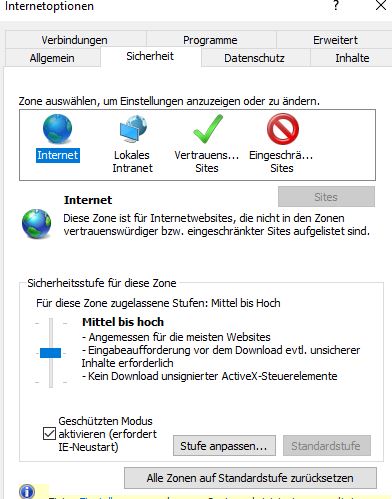
- In the Security Settings window, scroll to the Use Pop-up Blocker entry and select the Disable button.
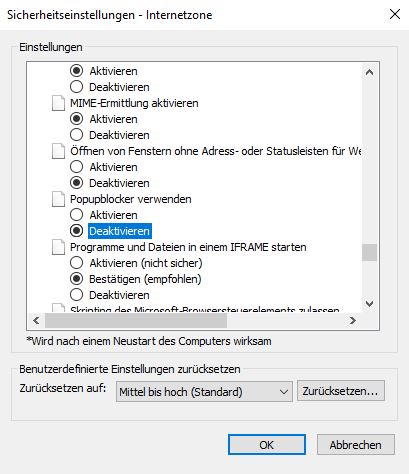
- Confirm the subsequent prompt with Yes and click OK.
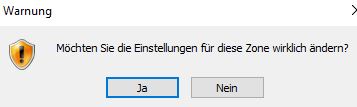
- The change will take effect after restarting the browser.
1.2 Internet Explorer – Disabling the pop-up blocker – Step 2
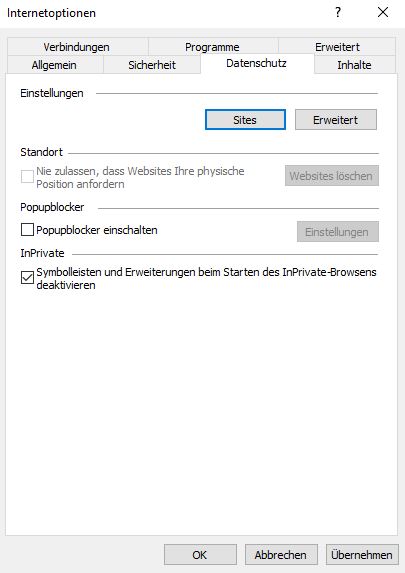
- In the Tools menu, click the Internet Options entry or click the menu icon in the top right and then select the Internet Options entry.
- Select the Privacy tab.
- Clear the Turn on Pop-up Blocker setting.
1.3 Internet Explorer – Pop-up blockers are enabled due to a Group Policy – Add EnTraS to a list of sites that temporarily allow pop-ups
- If pop-up blockers are enabled in your browser due to a Group Policy and you cannot change this setting, add the EnTraS site to a list of allowed sites for which pop-ups should be temporarily permitted.
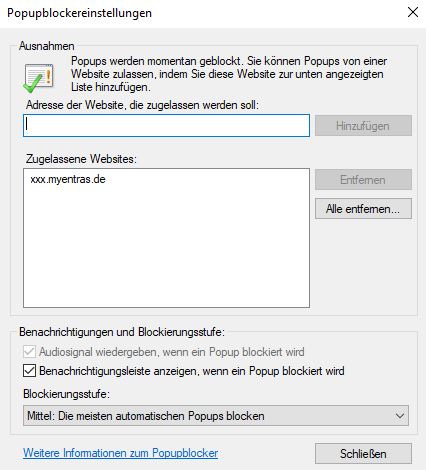
- Click the Tools > Pop-up Blocker > Pop-up Blocker Settings entry or click the menu icon in the top right and open Internet Options > Privacy tab > Pop-up Blocker > Settings.
- In the Pop-up Blocker Settings window, enter the EnTraS URL in the Address field and then click the Add button.
- Then click the Close button.
2.1 Edge – Disabling the pop-up blocker
- Click the Settings icon
 in the top right of the browser.
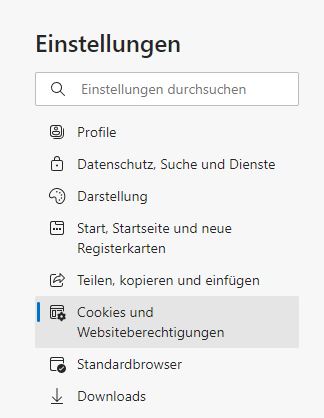
- Then select the Settings entry and subsequently Cookies and site permissions.
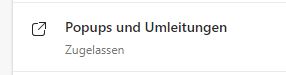
- On the right-hand side, scroll to Pop-ups and redirects and disable the Block button.

2.2 Edge – Pop-up blockers are enabled due to a Group Policy – Add EnTraS to a list of sites that temporarily allow pop-ups
- If pop-up blockers are enabled in your browser due to a Group Policy and you cannot change this setting, add the EnTraS site to a list of allowed sites for which pop-ups should be temporarily permitted.
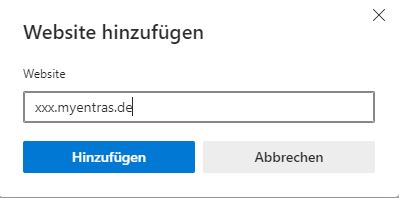
- In the aforementioned Pop-ups and redirects window, under the Allow tab, click Add, enter the EnTraS URL in the Address field and then click the Add button.
3. Mozilla Firefox – Disabling the pop-up blocker
- In the main menu, click Tools > Settings.
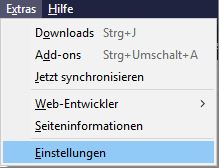
- If the toolbar is not enabled, click the menu icon
 in the top right and open Settings there.
- Select the Privacy & Security entry in the menu.
- Scroll down to the Block pop-up windows entry and untick the checkbox.

4.Google Chrome – Disabling the pop-up blocker
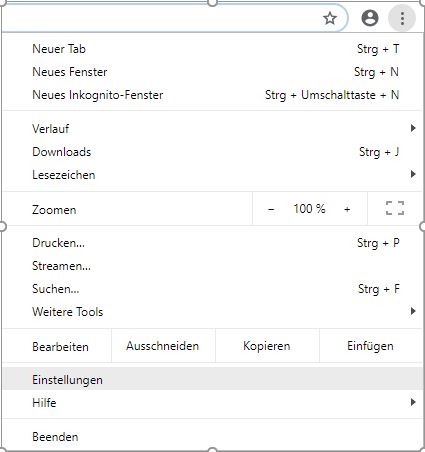
- In the top right of the browser, click the
 Customise and control Google Chrome icon.
- Select the Settings entry.
- Under Privacy and security on the right-hand side, click Site settings.

- Scroll to Content and click Pop-ups and redirects here.

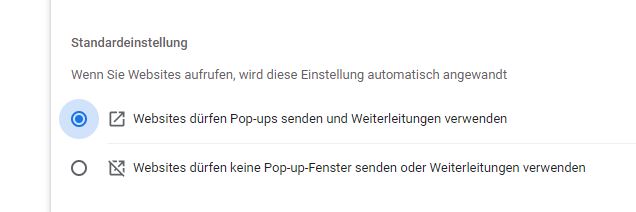
- Enable the Sites can send pop-ups and use redirects switch here.